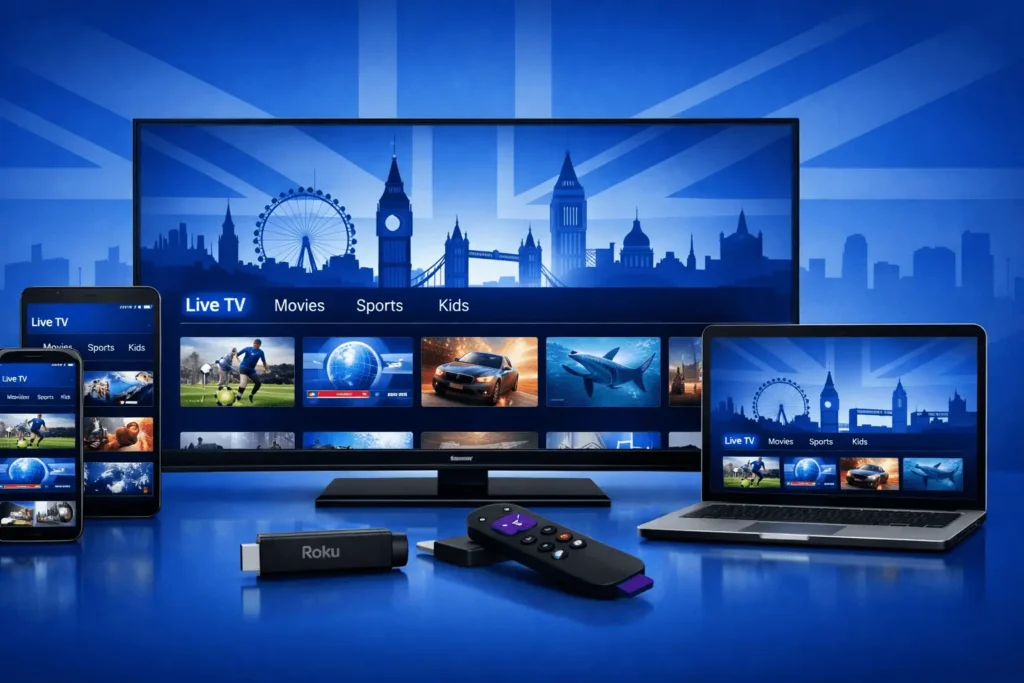
If you’ve been trying to figure out how to watch IPTV UK on iPhone and Android, or get it running on your Smart TV or PC, you’re in the right place.
This complete beginner-friendly guide shows you step-by-step how to set up IPTV UK, download the right app, activate your subscription, and start streaming in minutes — without confusing tech talk.
Whether you’re brand new to IPTV, upgrading your setup, or switching providers, this guide will help you get everything running smoothly and fast.
What Is IPTV and How Does It Work?
IPTV stands for Internet Protocol Television. Instead of receiving TV channels through a satellite dish or cable box, you stream them over your internet connection. Think of it like Netflix, but for live TV channels, sports, news, and on-demand content.
All you need is a reliable internet connection, a compatible device, and an IPTV subscription. Once those are in place, you can watch UK channels from virtually anywhere in the world.
Why Choose UKStreamTV?
UKStreamTV is built for UK viewers who want a straightforward, high-quality streaming experience. Here’s what makes it a solid choice:
- Wide channel selection covering UK sports, entertainment, news, and international content
- HD and 4K streaming on supported devices
- Stable servers with minimal buffering
- Multi-device support, so you can watch on your phone, TV, or laptop
- Responsive customer support if you run into any issues
UKStreamTV uses IBO Player as its recommended streaming app. It’s free to download, easy to set up, and available on almost every major device.
Which Devices Are Supported?
One of the biggest advantages of watching IPTV in the UK through UKStreamTV is the range of supported devices. You can stream on:
- Android smartphones and tablets
- iPhone and iPad
- Samsung Smart TVs
- LG Smart TVs
- Roku streaming devices
- Windows PCs and laptops
So whether you’re at home on the sofa or travelling with just your phone, you’re covered.
Step-by-Step IPTV Setup Guide
Here’s the full process broken down into simple steps so anyone can follow along, no technical experience needed.
Step 1: Get Your UKStreamTV Subscription
Before you download anything, you need an active IPTV subscription.
- Go to the UKStreamTV website and browse the available plans
- Choose the plan that fits your needs and complete the purchase process
- Once you’ve subscribed, check your email and whatsapp for your login credentials
- Your credentials will typically include:
- A username
- A password
- A portal URL or M3U playlist URL
- Save these details somewhere easy to find, you’ll need them when setting up IBO Player
Step 2: Download IBO Player on Your Device
IBO Player is the app UKStreamTV recommends for streaming. It’s free to download and available on all major platforms. Find the instructions for your device below.
Android (Smartphones & Tablets)
-
- Unlock your Android phone or tablet and open the Google Play Store
- Tap the search bar at the top of the screen
- Type “IBO Player” or “IBO Pro Player” and press search
- Locate the app in the results, it’s published as IBO Pro Player
- Tap Install and wait for the download to complete
- Once installed, tap Open to launch the app
iPhone and iPad
- Open the Apple App Store on your iPhone or iPad
- Tap the Search tab at the bottom of the screen
- Type “IBO Pro Player” into the search bar and tap Search
- Find the app in the results and tap Get to download it
- You may be asked to confirm with Face ID, Touch ID, or your Apple ID password
- Wait for the app to install, then tap Open
- Note: Your device needs to be running iOS 13 or above
Download IBO Player For Iphone
Samsung Smart TV
- Pick up your Samsung TV remote and press the Home button
- This will open the Samsung Smart Hub on your screen
- Navigate to the Apps section using your remote
- Select the search icon (magnifying glass) within the Apps section
- Type “IBO Player” using the on-screen keyboard
- Select the app from the search results
- Click Install and wait for it to download to your TV
- Once installed, the app will appear in your Smart Hub app list
Download IBO Player For Samsung TV
LG Smart TV
- Press the Home button on your LG remote to go to the home screen
- Navigate to the LG Content Store from the home screen menu
- Once inside the Content Store, find the search function
- Type “IBO Player” using the on-screen keyboard
- Select the app from the results that appear
- Click Install and allow the download to complete
- The app will then be available directly from your LG TV’s home screen
Roku Devices
- From the Roku home screen, scroll down and select Streaming Channels
- This opens the Roku Channel Store
- Select Search Channels from the menu
- Type “IBO Player” using your remote or the Roku mobile app keyboard
- Find IBO Player in the search results and select it
- Click Add Channel to install it on your Roku device
- Once added, you’ll find it listed under your channels on the home screen
Windows PC (Windows 10 & 11)
- Click the Start menu and open the Microsoft Store
- You can also search “Microsoft Store” in the taskbar search box
- Click the search bar inside the Microsoft Store
- Type “IBO Player” and press Enter
- Select the app from the search results
- Click Get or Install to download it to your PC
- Once installed, open the app from your Start menu or desktop
Download IBO Player For Windows
Step 3: Open IBO Player and Enter Your Subscription Details
Once IBO Player is installed, open it on your device. You’ll be prompted to enter your account details. This is where your UKStreamTV subscription credentials come in.
Depending on your subscription type, you may enter:
- A portal URL provided by UKStreamTV
- Or your M3U playlist URL along with your username and password
If you’re unsure which method to use, check the welcome email from UKStreamTV or contact their support team. They’ll point you in the right direction quickly.
Step 4: Load Your Channels and Start Watching
After entering your details, IBO Player will load your channel list. This can take a minute or two the first time. Once it’s done, you’ll have access to your full channel lineup, including live TV, sports, and any on-demand content included in your plan.
Browse through the categories, pick a channel, and start watching.
How to Activate Your IPTV Subscription
Some IPTV services, including UKStreamTV, may require you to activate your subscription through a code or via your account dashboard. Here’s the general process:
- Log in to your UKStreamTV account on the website
- Navigate to your account or subscription settings
- Look for an activation code or device registration option
- Enter the code in IBO Player if prompted, or confirm activation through the dashboard
If you’re not seeing an activation step, it’s likely handled automatically when you enter your portal URL. Either way, UKStreamTV’s support team can walk you through it if needed.
Tips for the Best Streaming Experience
A few small things can make a big difference in how smoothly your IPTV runs.
Check your internet speed.
For HD streaming you want at least 10 Mbps. For 4K, aim for 25 Mbps or higher. If multiple people in your home are streaming at the same time, a faster connection helps a lot.
Use a wired connection when possible.
If you’re watching on a Smart TV or PC, plugging directly into your router with an ethernet cable gives you a more stable connection than Wi-Fi.
Restart IBO Player if channels aren’t loading.
Sometimes the app just needs a fresh start. Close it completely and reopen it.
Clear the app cache on Android.
If you’re on Android and experiencing slowdowns, go to your phone’s Settings, find IBO Player in Apps, and clear the cache. This often fixes performance issues without losing your settings.
Keep the app updated.
Updates usually include bug fixes and performance improvements. Check your device’s app store periodically for the latest version.
Troubleshooting Common IPTV Issues
Even with a solid setup, you might run into the occasional hiccup. Here are the most common issues and how to fix them.
- Buffering or freezing: This is almost always an internet speed issue. Run a speed test and check if other devices on your network are using a lot of bandwidth. Pausing downloads or video calls on other devices can help immediately.
- Channels not loading: Double-check your subscription credentials in IBO Player. A typo in the portal URL or username is the most common cause. If everything looks correct, contact UKStreamTV support, it may be a server-side issue that they can resolve quickly.
- App crashing on Smart TV: Uninstall and reinstall IBO Player. If the issue persists, check if your TV’s firmware is up to date.
- No sound or picture: Try switching to a different channel and then back. If it’s happening on multiple channels, it’s likely a connectivity issue rather than a content problem.
- Subscription not activating: Make sure you’re using the exact credentials sent to you by UKStreamTV. Copy and paste where possible to avoid errors.
Conclusion
Watching IPTV in the UK has never been more accessible. With UKStreamTV and IBO Player, you can stream live UK channels on pretty much any device you own, your phone, tablet, Smart TV, Roku, or laptop. The setup process is straightforward, and once you’re up and running, the experience is smooth and reliable.
If you haven’t signed up yet, visit UKStreamTV to check out the available plans. And if you run into any issues during setup, their support team is there to help.
Frequently Asked Questions
What is the best IPTV player for UK streaming?
IBO Player is one of the most widely used and reliable IPTV apps available right now. It supports all major devices, has a clean interface, and works seamlessly with UKStreamTV subscriptions. It’s free to download from your device’s official app store.
Can I watch IPTV on my iPhone?
Yes, absolutely. Download IBO Pro Player from the Apple App Store, enter your UKStreamTV subscription details, and you’re good to go. It works on any iPhone or iPad running iOS 13 or later.
How much internet speed do I need for IPTV UK?
For a smooth HD stream, you need at least 10 Mbps. If you’re watching in 4K or have multiple people streaming at home, 25 Mbps or more is recommended. Most standard UK broadband packages are more than fast enough.
Can I use one IPTV subscription on multiple devices?
This depends on your UKStreamTV plan. Some plans allow simultaneous connections on multiple devices, while others are limited to one screen at a time. Check your plan details or contact UKStreamTV to confirm what’s included.
Is IPTV legal in the UK?
Using a licensed IPTV subscription to stream content from authorised providers is legal. UKStreamTV operates as a legitimate IPTV service. As with any streaming platform, it’s important to use services that have the proper rights to the content they distribute.